Guides
Master and slaves: installation and setup
How to spread viewers across several servers. The main server (master) keeps the database and decides where each client goes. The extra servers (slaves) deliver the channels in its place.
How it works
- The client connects to the master as before. Playlist addresses do not change.
- The master picks a server and redirects the client there. Playlists (Xtream, M3U, Stalker, NICE, TVIP) already contain the chosen slave's address.
- The slave checks the subscriber against its own copy of the data and starts the stream. Movies and series (VOD) are played from the master.
- Every 15 seconds the slave asks the master for changes and downloads only what changed, channel logos included. With a key it also reports its load.
A slave runs the same program as the master. The only difference is one setting: Configuration → Balancer.
Before you start
- Same version (5.5+) on the master and all slaves.
- Slave → master: the slave can reach the master's panel port (default
4300). - Master → slave: the master can reach the slave's panel port (for the connection list and “kick”).
- Clients → slave: clients can reach the slave's streaming ports:
3000MPEGTS,4000Xtream,4001Stalker,4002NICE API,4003TVIP,9888HLS (or yours, if you changed them – the slave takes them from the master). - Correct clock on every server (NTP). Up to 10 minutes of difference is accepted, otherwise protected requests are refused.
- For SSH installation: root access to the new server.
1Make the server a master
On the main server open Configuration → tab BALANCER.
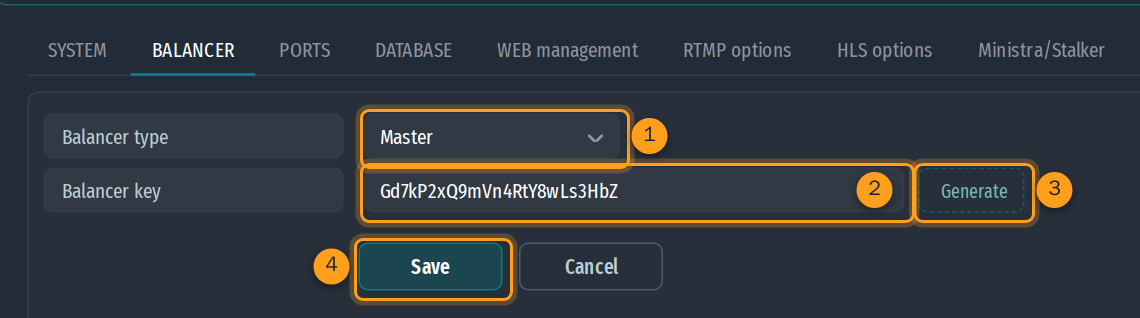
- Balancer type → Master.
- Balancer key – the shared secret between the master and its slaves. Everything between them, subscriber passwords included, is encrypted and signed with it.
- Generate creates a random key. You can also type your own: 16–128 characters, letters, digits,
-and_. Copy the key – every slave needs it. - Save.
The old protocol is then used: its cipher is the same for every installation and a slave is recognised only by its IP. Load reports and the common connection limit do not work either. We recommend always setting a key.
2Add the slave on the master
On the master: Channels → Balancers. Fill in the new server in the Add row.

- Id – the slave's number. A free one is suggested. Remember it – the same number is entered on the slave.
- Name – e.g.
DE-1. Subscribers are assigned to the slave by this name. - IP address or host name – the address for clients:
203.0.113.21orde1.example.com. Viewers are redirected there and it goes into the playlists. - Countries and networks – whom the slave serves: country codes (
DE,AT), subnets (10.20.0.0/16) or single IPs, separated by commas. Leave empty if the slave is only for manually assigned subscribers. - Panel language on the slave – English or Bulgarian.
- Stream workers – auto (recommended) or a fixed number. See “Slave settings from the master” below.
- Source read, ms –
20by default. - Add balancer.
If you install over SSH (option A in the next step) you can skip this row – the installation adds the slave itself.
3Install and set up the slave
Option A – SSH installation
On the master: Channels → Balancers → SSH installation (top right).
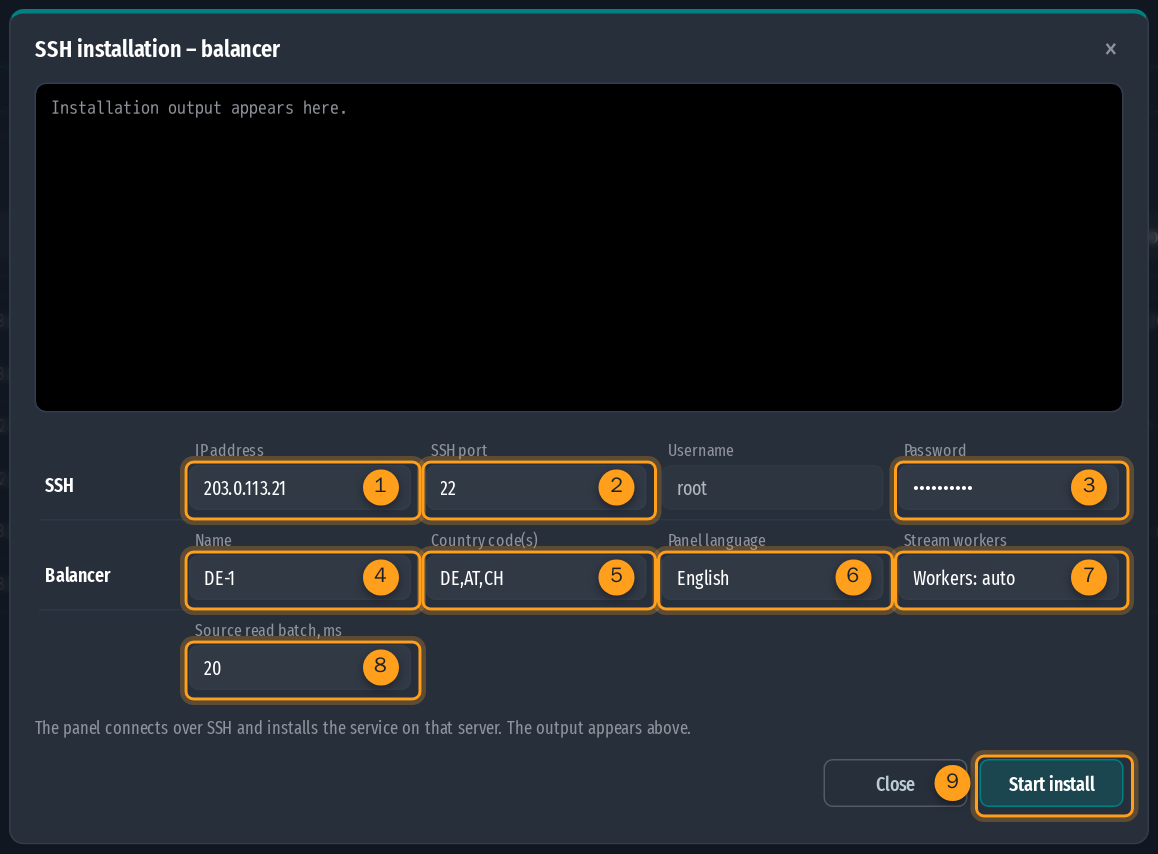
- IP address of the new server.
- SSH port (usually
22). The user isroot. - Password for root. It is used only for this installation.
- Name of the slave, e.g.
DE-1. - Countries and networks – as in step 2.
- Panel language on the slave.
- Stream workers – leave auto: the master reads the number of CPU cores of the new server during the installation.
- Source read, ms –
20. - Start install. Progress appears in the black box.
The master installs the panel, makes it a slave pointing to itself, writes its Id and the key, turns on Admin login from master, and adds it to the list. You log in to the slave's panel with the same admin user and password as on the master (after the first sync, up to 60 s after it starts). After a few minutes the slave shows as online – see step 4.
Option B – by hand
1. Install the panel on the new server as usual (as root):
curl -s https://nice-panel.com/install3.sh | bash -s 5.52. Log in to the slave's panel → Configuration → BALANCER:
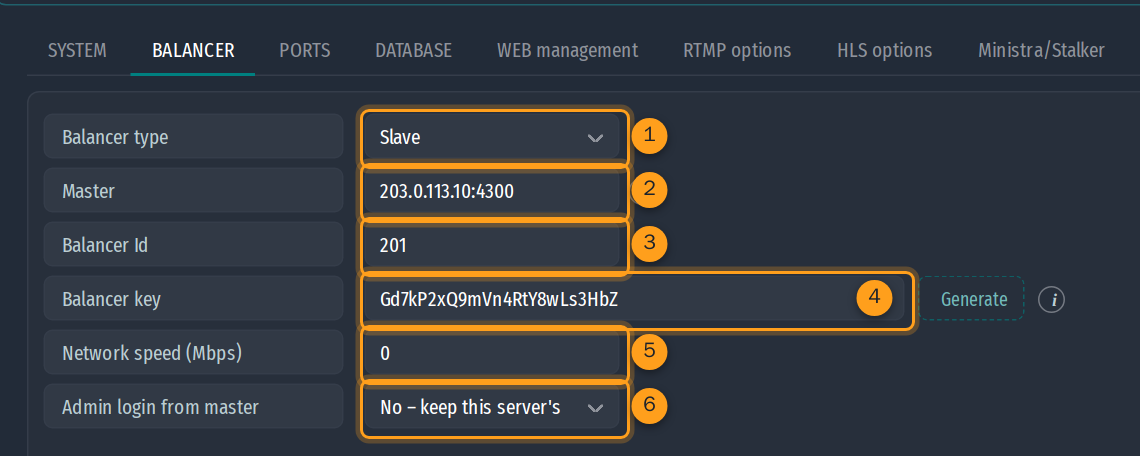
- Balancer type → Slave.
- Master – the master's address with its panel port:
IP:4300. - Balancer Id – the same as in the master's list (step 2). With a key the master recognises the slave by it, whatever its IP (dynamic IP, NAT, different outgoing address).
- Balancer key – the same key as on the master.
- Network speed (Mbps) –
0= read from the network card. Enter a value (1000,10000) on virtual servers or when the port/plan is slower than the card. - Admin login from master – No: the slave keeps its own admin user and password. Yes: it takes them from the master.
3. Save. The slave downloads everything from the master: channels, users, EPG, VOD, settings and logos. If the master uses other ports, the slave takes them and restarts itself.
4. If you have not done it yet, add the slave to the master's list (step 2).
Slave settings from the master
The Configuration page on a slave is limited – most settings come from the master. Three settings belong to each slave and are set on the master, in its row in Balancers (Add, Edit ✎ or SSH installation):
| Setting | What it does |
|---|---|
| Panel language | the language of the slave's panel. Applied at once, without a restart |
| Stream workers | processes that send the live streams to the viewers, on several CPU cores. Auto by the slave's cores: up to 4 cores → 2, up to 8 → 4, more than 8 → 8 (more than 8 does not help). Or a fixed number (off, 1–16) |
| Source read, ms | how often the slave reads the channel sources. 20 by default; 0 = off. Applied at once |
The number of stream workers takes effect after a restart, so the slave restarts itself – only when the value really changes. Its viewers are disconnected for a few seconds. With the SSH installation the right number is written during the installation, so there is no restart. A slave installed by hand gets it on its first contact with the master – one restart.
4Check the status
On the master: Channels → Balancers. Each slave's status refreshes every 5 seconds.
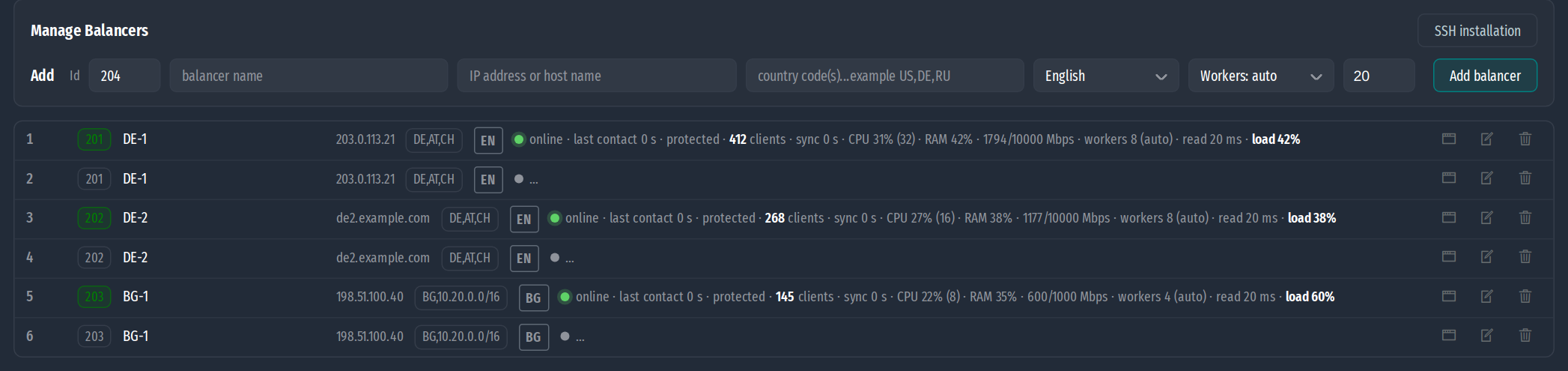
| Shown | Meaning |
|---|---|
| ● online / offline | whether the slave has polled the master in the last 150 s. The number turns green or red |
| protected / unprotected | with a key / old protocol without a key |
| from <IP> | the slave connects from an IP other than its address (NAT, host name) – for information |
| N clients | how many viewers the slave serves |
| EN / BG | the panel language set for the slave |
| CPU · RAM · Mbps | CPU use (cores), memory and network (traffic / card speed) |
| workers N (auto) · read N ms | the slave's actual stream workers and source read. An orange → N means a new value is waiting for the slave's restart |
| load % | the busiest of the three resources. The slave is chosen by it; above 90% it is highlighted |
| sync | when the slave last confirmed the data |
| changes waiting (N) | how many kinds of data it has not downloaded yet. Normal for a short time after a change or a restart |
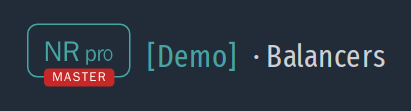
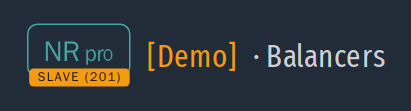
Each panel also shows its role under the logo, on every page – so you always know which panel you are in:
5Which viewer goes where
For every new connection the master checks the rules in order and stops at the first one that gives a live slave:
| Rule | How to set it |
|---|---|
| 1. Manual | Users → the subscriber's Balancer field (or in bulk for the selected ones). Always wins while that slave is live |
| 2. Subnet | the viewer's IP is in a subnet or IP listed in a balancer's “countries” field |
| 3. Country | the viewer's GeoIP country is in the “countries” field |
| 4. Master | nothing matched or those slaves are down: the viewer stays on the master |
Several slaves for one location
If one country or network has several live slaves, the new viewer goes to the least loaded one. This is not round robin: load is the highest of CPU, memory and network, so a server with a faster card or more cores takes proportionally more viewers. On a tie (within 5 points) the subscriber decides, so one subscriber keeps landing on the same server.
A slave goes down
A slave that has not polled for over 150 s is skipped. The redirect is temporary (302), so the viewer's next connection goes through the master again and lands on a live server. If the master is unreachable when a slave starts, the slave starts with the last data it received.
Connection limit
With a key the subscriber's limit is shared across all servers: 2 allowed connections means 2 in total, not 2 per server.
If something does not work
Messages are in the panel log and start with [BAL].
| Message / symptom | What to do |
|---|---|
old protocol – set the same bal_key there | the master has a key, the slave does not. Enter the key on the slave |
bal_key mismatch | the keys differ or the clocks are more than 10 minutes apart |
unknown slave … set the same Id | the slave's Id is missing or not in the master's list |
IP not allowed | without a key the slave must connect from the IP of its address. With a key, fill in the slave's Id |
master … – no sync | the slave cannot reach the master: network, firewall, port 4300 |
| “offline” on the master | the slave is stopped or cannot reach the master. Its viewers go to the other servers |
| “speed unknown” | the virtual card does not report a speed. Set Network speed on the slave |
- update the master and all slaves;
- set the key (and Id) on the slaves;
- set it on the master last.
Until the keys match, the slaves keep working with the last data they received.